多选框

  • 更新时间:2026-03-14 11:42:16

多选框-check

原生类型:{com.google.android.material.checkbox.MaterialCheckBox}

多选框控件{XCheck}是属于{XView}的子控件,因此{XView}中的所有方法,多选框控件都可以调用。

多选框一般用于:用户同意、配置多种选择、筛选数据等场景。

一、基础用法

<ui>
    <statusbar />
    <linear w="max" dir="h" gravity="center">
        <check id="mCheck" text="同意协议"/>
    </linear>
</ui>
let ui = $ui.layout("ui.xml");
ui.show();//显示界面
//找到界面中的元素并且实现点击事件
ui.id("mCheck").onCheck((checked,comButton) => {
    if(checked){
        info("我被选中了");
    }else{
        info("没有被选中");
    }
});

二、常用属性

text - 文本

设置文本

<ui>
    <statusbar />
    <check text="我是文本" />
</ui>

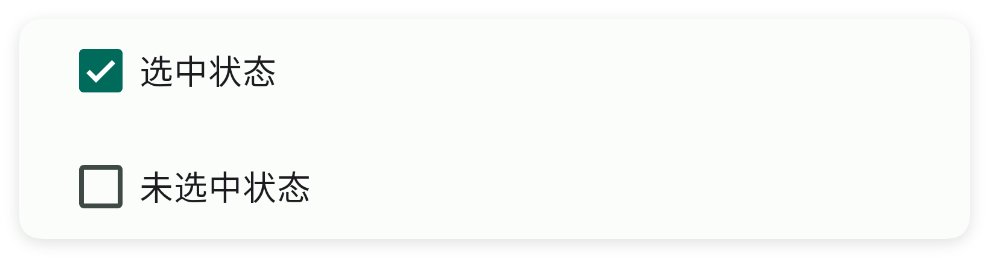
check - 选中

设置选中

<ui>
    <statusbar />
    <check check="true" text="选中状态" />
    <check check="false" text="未选中状态" />
</ui>

color - 主题颜色

设置主题颜色

<ui>
    <statusbar />
    <linear dir="h" w="max">
        <check check="true" color="#518855" text="吃饭" />
        <check check="true" color="#C94F4F" text="睡觉" />
        <check check="true" color="#3471E9" text="游戏" />
    </linear>
</ui>

tint - 按钮颜色

设置按钮颜色

<ui>
    <statusbar />
    <linear dir="h" w="max">
        <check check="true" text="吃饭" tint="#518855" />
        <check check="true" text="睡觉" tint="#C94F4F" />
        <check check="true" text="游戏" tint="#3471E9" />
    </linear>
</ui>

textColor - 文本颜色

设置文本颜色

<ui>
    <statusbar />
    <linear dir="h" w="max">
        <check check="true" text="吃饭" textColor="#518855" />
        <check check="true" text="睡觉" textColor="#C94F4F" />
        <check check="true" text="游戏" textColor="#3471E9" />
    </linear>
</ui>

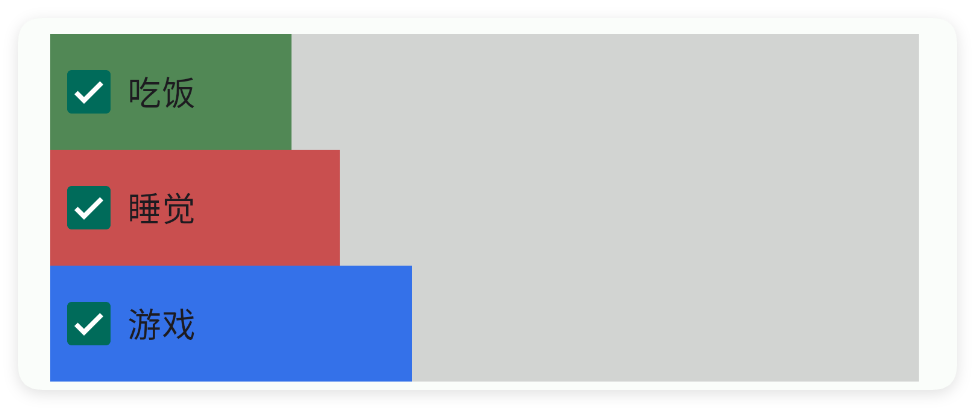
minW - 最小宽度

设置最小宽度

单位:dp

<ui>
    <statusbar />
    <linear bg="#55808080" dir="v" w="max">
        <check bg="#518855" check="true" minW="100" text="吃饭" />
        <check bg="#C94F4F" check="true" minW="120" text="睡觉" />
        <check bg="#3471E9" check="true" minW="150" text="游戏" />
    </linear>
</ui>

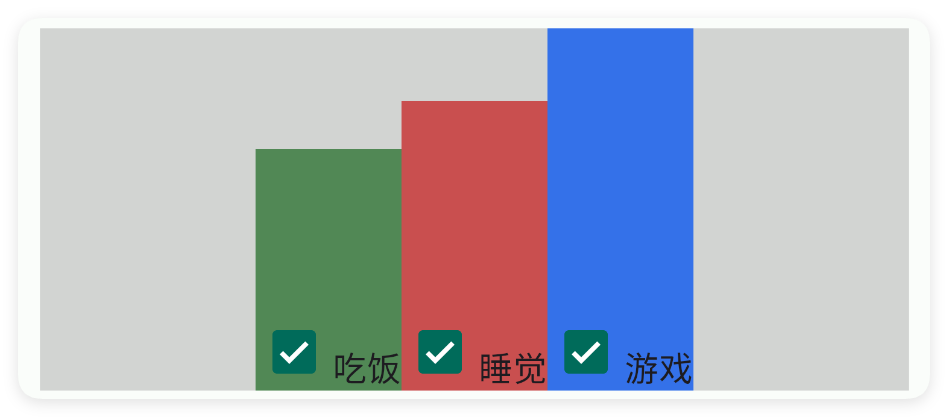
minH - 最小高度

设置最小高度

单位:dp

<ui>
    <statusbar />
    <linear bg="#55808080" dir="h" gravity="center|bottom" w="max">
        <check bg="#518855" check="true" gravity="bottom" minH="100" text="吃饭" />
        <check bg="#C94F4F" check="true" gravity="bottom" minH="120" text="睡觉" />
        <check bg="#3471E9" check="true" gravity="bottom" minH="150" text="游戏" />
    </linear>
</ui>

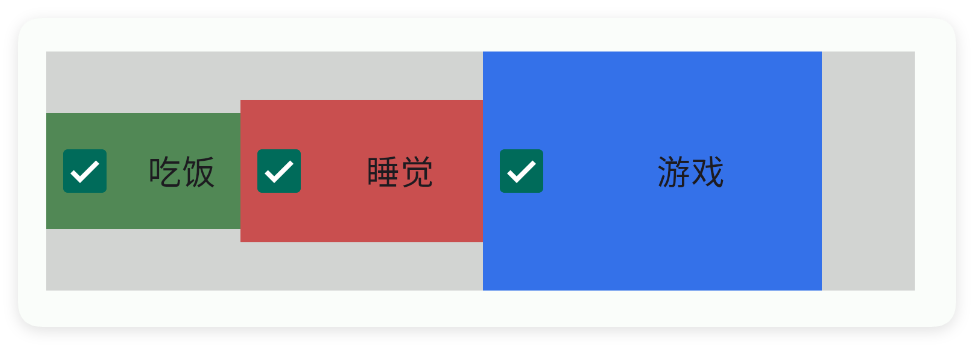
padding - 内边距

设置内边距

<ui>
    <statusbar />
    <linear bg="#55808080" dir="h" w="max">
        <check bg="#518855" check="true" padding="10" text="吃饭" />
        <check bg="#C94F4F" check="true" padding="20" text="睡觉" />
        <check bg="#3471E9" check="true" padding="40" text="游戏" />
    </linear>
</ui>

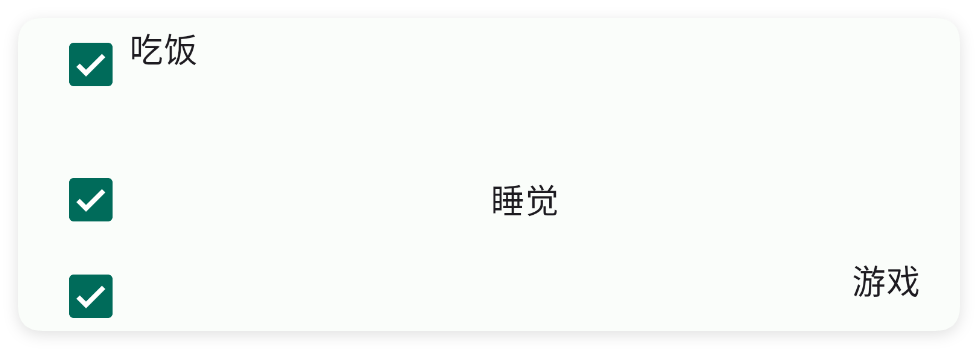
gravity - 重力

设置重力

<ui>
    <statusbar />
    <check check="true" gravity="start" text="吃饭" w="max" />
    <check check="true" gravity="center" text="睡觉" w="max" />
    <check check="true" gravity="end" text="游戏" w="max" />
</ui>

bg - 背景颜色

设置背景颜色

<ui>
    <statusbar />
    <linear bg="#55808080" dir="h" w="max">
        <check bg="#518855" check="true" text="吃饭" />
        <check bg="#C94F4F" check="true" text="睡觉" />
        <check bg="#3471E9" check="true" text="游戏" />
    </linear>
</ui>

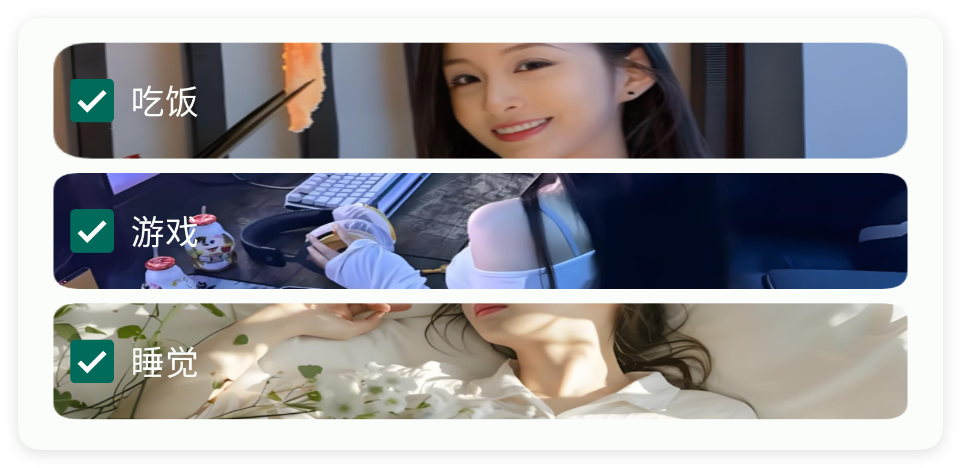
bgImg - 背景图片

设置背景图片

<ui>
    <statusbar />
    <check bgImg="example/$ui - 交互界面/03.check-复选框/img/bg01.png" check="true"
        margin="3" text="吃饭" textColor="bg" w="max" />
    <check bgImg="example/$ui - 交互界面/03.check-复选框/img/bg02.png" check="true"
        margin="3" text="游戏" textColor="bg" w="max" />
    <check bgImg="example/$ui - 交互界面/03.check-复选框/img/bg03.png" check="true"
        margin="3" text="睡觉" textColor="bg" w="max" />
</ui>

三、常用函数

onCheck(callback)

设置选中监听

当选中状态改变时,会回调该函数

注意在1.5.9版本之后,该函数回调的参数顺序为(isChecked,view),之前的版本是(view,isChecked)

  • 参数 : callback {(isChecked,view)=>{}} 选中监听
//解析布局,获得ui对象
let ui = $ui.layout("./mUi.xml");
//获得控件
let mCheck = ui.id("mCheck");
//设置选中监听
mCheck.onCheck((isChecked,view)=>{
    if(isChecked){
        ui.toast("选中");
    }else{
        ui.toast("没有选中");
    }
});

isChecked()

判断是否选中

  • 返回 : {boolean} true:选中,false:没有选中
//解析布局,获得ui对象
let ui = $ui.layout("./mUi.xml");
//获得控件
let mCheck = ui.id("mCheck");
//判断是否选中
let is = mCheck.isChecked();
if(is){
    toast("选中");
}else{
    toast("没有选中");
}

check(checked)

设置选中的状态

  • 参数 : checked {boolean} true:选中,false:没有选中
//解析布局,获得ui对象
let ui = $ui.layout("./mUi.xml");
//获得控件
let mCheck = ui.id("mCheck");
//设置选中的状态
mCheck.check(true);

setGravity(gravity)

设置控件的对齐方式

  • 参数 : gravity {String} 例如:"center|bottom"
//解析布局,获得ui对象
let ui = $ui.layout("./mUi.xml");
//获得控件
let mCheck = ui.id("mCheck");
//设置重力
mCheck.setGravity("center");

setText(text)

设置文字

  • 参数 : text {String} 文字
//解析布局,获得ui对象
let ui = $ui.layout("./mUi.xml");
//获得控件
let mCheck = ui.id("mCheck");
//设置文字
mCheck.setText("记住密码");

getText()

获得文字

如果获取的文本为null则返回空字符串

  • 返回 : {String} 文字
//解析布局,获得ui对象
let ui = $ui.layout("./mUi.xml");
//获得控件
let mCheck = ui.id("mCheck");
//获得文字
let text = mCheck.getText();

setColor(color)

设置主题颜色

  • 参数 : color {String} 颜色
//解析布局,获得ui对象
let ui = $ui.layout("./mUi.xml");
//获得控件
let mCheck = ui.id("mCheck");
//设置主题颜色
mCheck.setColor("#1E1F22");

setColor(color)

设置主题颜色

  • 参数 : color {int} 颜色
//解析布局,获得ui对象
let ui = $ui.layout("./mUi.xml");
//获得控件
let mCheck = ui.id("mCheck");
//设置主题颜色
mCheck.setColor($color.RED);

setTextColor(color)

设置文字颜色

  • 参数 : color {String} 颜色
//解析布局,获得ui对象
let ui = $ui.layout("./mUi.xml");
//获得控件
let mCheck = ui.id("mCheck");
//设置主题颜色
mCheck.setTextColor("#1E1F22");

setTextColor(color)

设置文字颜色

  • 参数 : color {int} 颜色
//解析布局,获得ui对象
let ui = $ui.layout("./mUi.xml");
//获得控件
let mCheck = ui.id("mCheck");
//设置主题颜色
mCheck.setTextColor($color.RED);

setBg(color)

设置背景颜色

  • 参数 : color {String} 颜色
//解析布局,获得ui对象
let ui = $ui.layout("./mUi.xml");
//获得控件
let mCheck = ui.id("mCheck");
//设置背景颜色
mCheck.setBg("#1E1F22");

setBg(color)

设置背景颜色

  • 参数 : color {int} 颜色
//解析布局,获得ui对象
let ui = $ui.layout("./mUi.xml");
//获得控件
let mCheck = ui.id("mCheck");
//设置背景颜色
mCheck.setBg($color.RED);