#工具栏
- 更新时间:2026-06-15 07:53:05
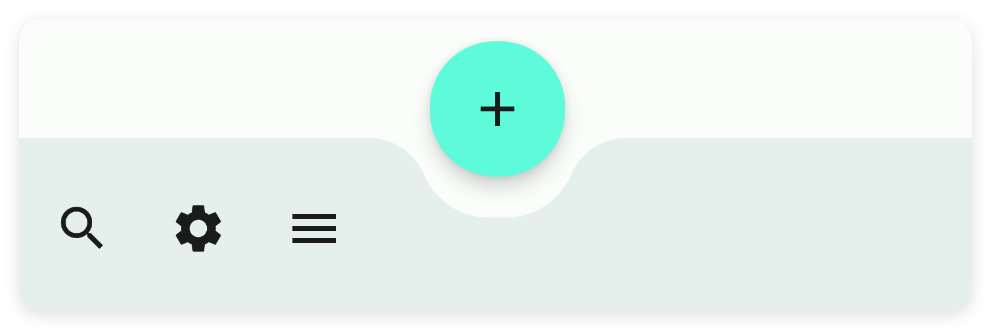
工具栏-toolbar
原生类型:{com.google.android.material.bottomappbar.BottomAppBar}
一般放在布局的最下方作为工具条
#一、常用属性
#bg - 背景颜色
设置背景颜色
icon/图标:用于指定图标,可以填写图标库的名称,也可以填写图标的相对路径或者绝对路径
<ui>
    <statusbar />
    <toolbar w="max" bg="#C94F4F">
        <menu icon="ic_home_fill" text="主页" />
        <menu icon="ic_settings_fill" text="设置" />
        <menu icon="ic_more_horiz_fill" text="更多" />
    </toolbar>
</ui>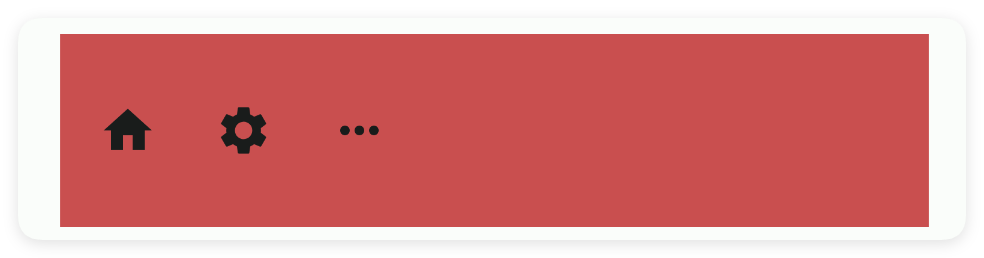
#bgImg - 背景图片
设置背景图片
<ui>
    <statusbar />
    <toolbar w="max" bgImg="example/$ui - 交互界面/26.toolbar-工具条/img/img.png">
        <menu icon="ic_home_fill" text="主页" />
        <menu icon="ic_settings_fill" text="设置" />
        <menu icon="ic_more_horiz_fill" text="更多" />
    </toolbar>
</ui>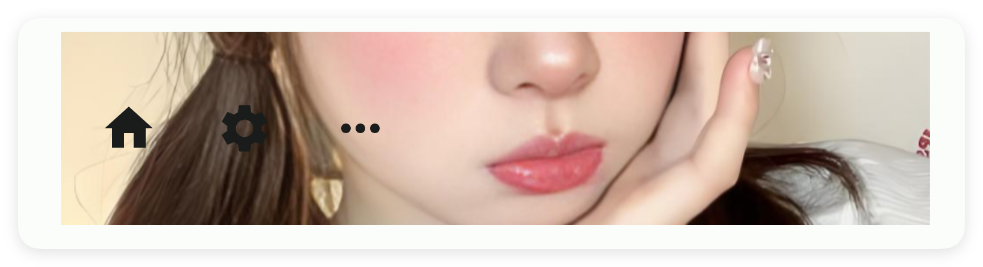
#二、锚定系统
在M3的布局中有一种很有趣的锚定系统,它允许多个组件通过锚定来进行布局的调整,类似于船舶停靠在码头。
在这里我将实现最常用的fab(悬浮按钮)和toolbar(应用条)的锚定系统,值得提醒的是:有一件比较遗憾的事情,目前锚点系统中,只有toolbar(工具条)可以和fab(悬浮按钮)组成联动效果。
示例代码:
<ui>
    <statusbar />
    <!--
    anchor属性是所有控件都有的属性,但是使用anchorLayout属性必须要被coord锚点布局包才可以
    -->
    <coord h="max" w="max">
        <!--应用标题栏-->
        <appbar-layout w="max">
            <!--
            back:开启返回按钮
            scrollFlags:配置滚动布局滚动时的动画标记
            -->
            <appbar back="true" id="mAppbar" scrollFlags="scroll|enterAlways" subTitle="工具条"
                title="Toolbar" w="max" />
        </appbar-layout>
        <!--
        anchor="nested" 指的是:给滑动布局(nested)取一个驿站名称为'nested'
        behavior="appbar" 只要是在 coord 中的布局都可以设置 behavior 属性,该属性只有两个值:fab(悬浮按钮)和appbar(应用条)
        当(behavior)行为设置为(appbar)应用条时,(nested)滑动布局会自动拼接到(appbar)应用标下方,而不会覆盖应用条。
        -->
        <nested anchor="nested" behavior="appbar" bg="bg" h="max" w="max">
            <!--
            marginBottom="75" 刚好显示在工具条(toolbar)上面,免得工具条(toolbar)遮盖到线性布局(linear)的内容
            -->
            <linear dir="v" gravity="center" marginBottom="75" w="max">
                <text h="210" text="文本1" />
                <text h="210" text="文本2" />
                <text h="210" text="文本3" />
                <text h="210" text="文本4" />
                <text h="210" text="文本5" />
            </linear>
        </nested>
        <!--
        anchorLayout="nested" 指的是:锚定到名称为'nested'的布局上
        anchor="toolbar" 给工具条(toolbar)取一个驿站名称为'toolbar'
        anchorGravity="center|bottom" 只有被coord(锚点布局)包裹的子控件可以设置这个属性,用来指定相对于锚点布局的对齐方式
        fabMode="out" 用来配置停靠在(toolbar)工具条上(fab)悬浮按钮的停靠方式,有两种值:in(内部) 和 out(外部)
        -->
        <toolbar anchor="toolbar" anchorGravity="center|bottom" anchorLayout="nested"
            fabAnim="slide" fabGravity="center" fabMode="out" fabRadius="25" h="75"
            layout_gravity="bottom" w="max">
            <menu icon="ic_search_fill" text="搜搜" />
            <menu icon="ic_settings_fill" text="设置" />
            <menu icon="ic_menu_fill" text="菜单" />
        </toolbar>
        <!--
        这里我让(fab)悬浮按钮锚定到(toolbar)工作条的布局上,同时在(toolbar)工作条的布局上设置悬浮按钮的样式,
        然而(toolbar)工作条能够专门和(fab)悬浮按一起联动,实现凹陷的效果。
        anchorLayout="toolbar" 锚定到名称为'toolbar'的布局上
        -->
        <fab anchorLayout="toolbar" icon="ic_add_outline" iconTint="txt" radius="27" />
        <!--
        在上面的布局中,锚定的顺序是 fab(悬浮按钮) -> toolbar(工具条) ->  linear(线性布局)
        这一切都必须在coord(锚点布局)中,否则锚定关系将无效
        -->
    </coord>
</ui>#设置按钮模式
<ui>
    <statusbar />
    <coord h="max" w="max">
        <appbar-layout w="max">
            <appbar back="true" id="mAppbar" scrollFlags="scroll|enterAlways" subTitle="工具条"
                title="Toolbar" w="max" />
        </appbar-layout>
        <nested anchor="nested" behavior="appbar" bg="bg" h="max" w="max">
            <linear dir="v" gravity="center" marginBottom="75" w="max">
                <text h="210" text="文本1" />
                <text h="210" text="文本2" />
                <text h="210" text="文本3" />
                <text h="210" text="文本4" />
                <text h="210" text="文本5" />
            </linear>
        </nested>
        <!--
        设置按钮模式:fabMode="out"
        -->
        <toolbar anchor="toolbar" anchorGravity="center|bottom" anchorLayout="nested"
            fabAnim="slide" fabGravity="center" fabMode="out" fabRadius="25" h="75"
            layout_gravity="bottom" w="max">
            <menu icon="ic_search_fill" text="搜搜" />
            <menu icon="ic_settings_fill" text="设置" />
            <menu icon="ic_menu_fill" text="菜单" />
        </toolbar>
        <fab anchorLayout="toolbar" icon="ic_add_outline" iconTint="txt" radius="27" />
    </coord>
</ui>#按钮模式:(in)内部
<toolbar fabMode="in" w="max" />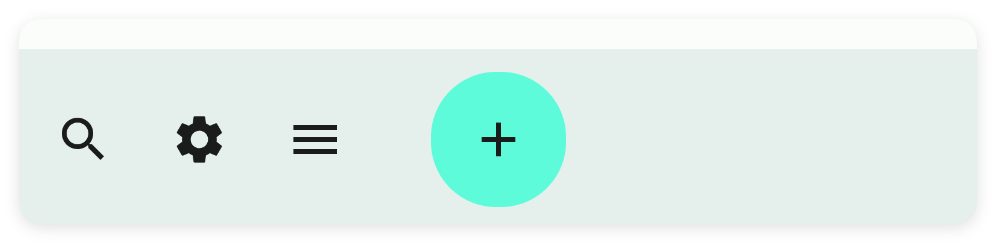
#按钮模式:(out)外部
<toolbar fabMode="out" w="max" />
#设置按钮重力
<ui>
    <statusbar />
    <coord h="max" w="max">
        <appbar-layout w="max">
            <appbar back="true" id="mAppbar" scrollFlags="scroll|enterAlways" subTitle="工具条"
                title="Toolbar" w="max" />
        </appbar-layout>
        <nested anchor="nested" behavior="appbar" bg="bg" h="max" w="max">
            <linear dir="v" gravity="center" marginBottom="75" w="max">
                <text h="210" text="文本1" />
                <text h="210" text="文本2" />
                <text h="210" text="文本3" />
                <text h="210" text="文本4" />
                <text h="210" text="文本5" />
            </linear>
        </nested>
        <!--
        设置按钮重力:fabGravity="center"
        -->
        <toolbar anchor="toolbar" anchorGravity="center|bottom" anchorLayout="nested"
            fabAnim="slide" fabGravity="center" fabMode="out" fabRadius="25" h="75"
            layout_gravity="bottom" w="max">
            <menu icon="ic_search_fill" text="搜搜" />
            <menu icon="ic_settings_fill" text="设置" />
            <menu icon="ic_menu_fill" text="菜单" />
        </toolbar>
        <fab anchorLayout="toolbar" icon="ic_add_outline" iconTint="txt" radius="27" />
    </coord>
</ui>#按钮重力:(center)中间
<toolbar fabGravity="center" w="max" />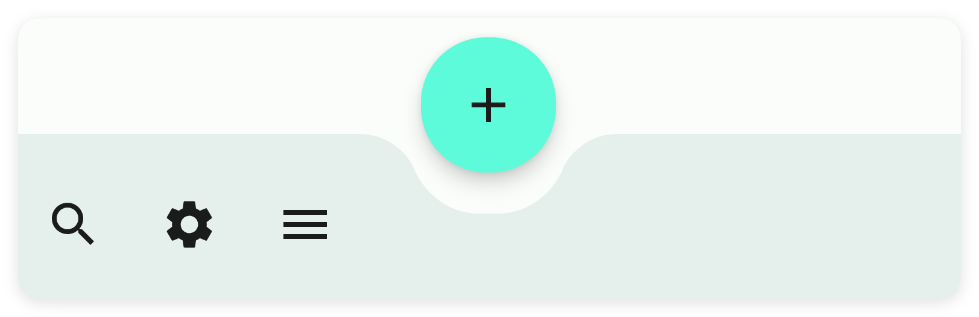
#按钮重力:(end)结束
<toolbar fabGravity="end" w="max" />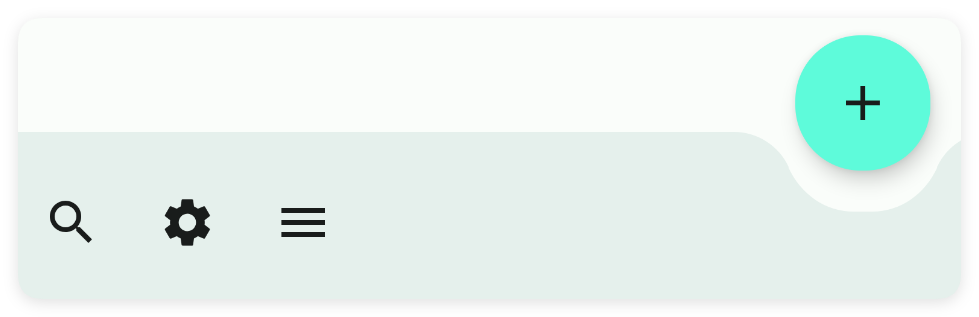
#设置按钮外边距(中间)
该属性需要指定fabGravity(按钮重力)=center(中间)
<ui>
    <statusbar />
    <coord h="max" w="max">
        <appbar-layout w="max">
            <appbar back="true" id="mAppbar" scrollFlags="scroll|enterAlways" subTitle="工具条"
                title="Toolbar" w="max" />
        </appbar-layout>
        <nested anchor="nested" behavior="appbar" bg="bg" h="max" w="max">
            <linear dir="v" gravity="center" marginBottom="75" w="max">
                <text h="210" text="文本1" />
                <text h="210" text="文本2" />
                <text h="210" text="文本3" />
                <text h="210" text="文本4" />
                <text h="210" text="文本5" />
            </linear>
        </nested>
        <!--
        设置按钮外边距:fabMargin="10"
        -->
        <toolbar anchor="toolbar" anchorGravity="center|bottom" anchorLayout="nested"
            fabAnim="slide" fabGravity="center" fabMargin="10" fabMode="out" fabRadius="25" h="75"
            layout_gravity="bottom" w="max">
            <menu icon="ic_search_fill" text="搜搜" />
            <menu icon="ic_settings_fill" text="设置" />
            <menu icon="ic_menu_fill" text="菜单" />
        </toolbar>
        <fab anchorLayout="toolbar" icon="ic_add_outline" iconTint="txt" radius="27" />
    </coord>
</ui>#按钮外边距:10
<toolbar fabMargin="10" w="max" />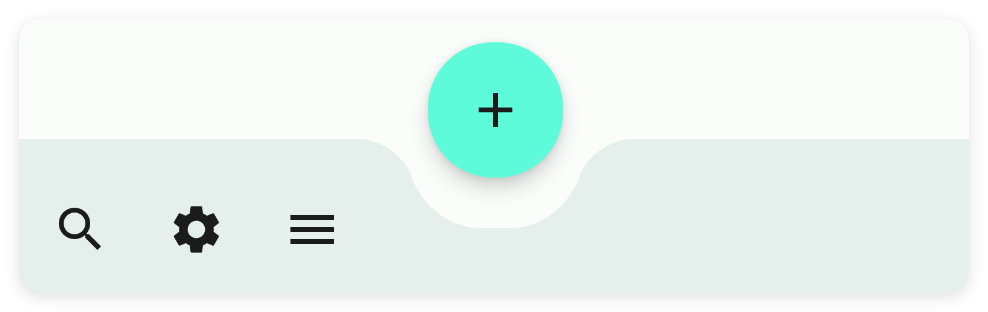
#按钮外边距:30
<toolbar fabMargin="30" w="max" />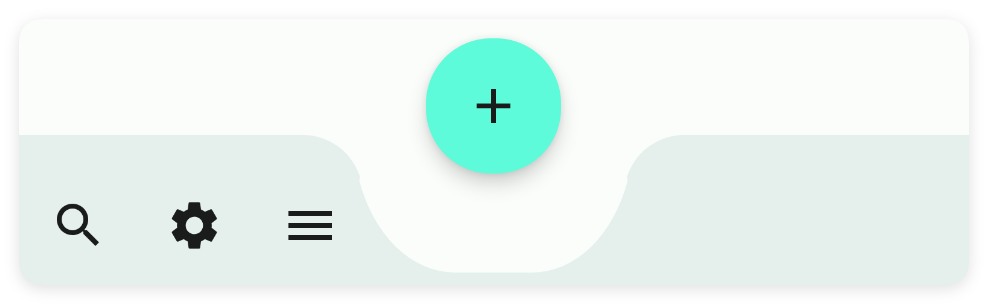
#设置按钮外边距(结束)
该属性需要指定fabGravity(按钮重力)=end(结束)
<ui>
    <statusbar />
    <coord h="max" w="max">
        <appbar-layout w="max">
            <appbar back="true" id="mAppbar" scrollFlags="scroll|enterAlways" subTitle="工具条"
                title="Toolbar" w="max" />
        </appbar-layout>
        <nested anchor="nested" behavior="appbar" bg="bg" h="max" w="max">
            <linear dir="v" gravity="center" marginBottom="75" w="max">
                <text h="210" text="文本1" />
                <text h="210" text="文本2" />
                <text h="210" text="文本3" />
                <text h="210" text="文本4" />
                <text h="210" text="文本5" />
            </linear>
        </nested>
        <!--
        设置按钮外边距:fabEndMargin="10"
        -->
        <toolbar anchor="toolbar" anchorGravity="center|bottom" anchorLayout="nested"
            fabAnim="slide" fabGravity="end" fabEndMargin="10" fabMode="out" fabRadius="25" h="75"
            layout_gravity="bottom" w="max">
            <menu icon="ic_search_fill" text="搜搜" />
            <menu icon="ic_settings_fill" text="设置" />
            <menu icon="ic_menu_fill" text="菜单" />
        </toolbar>
        <fab anchorLayout="toolbar" icon="ic_add_outline" iconTint="txt" radius="27" />
    </coord>
</ui>#按钮结束外边距:10
<toolbar fabEndMargin="10" w="max" />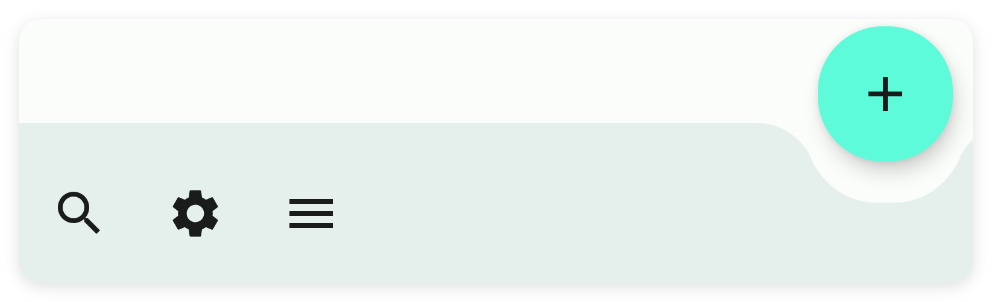
#按钮结束外边距:30
<toolbar fabEndMargin="30" w="max" />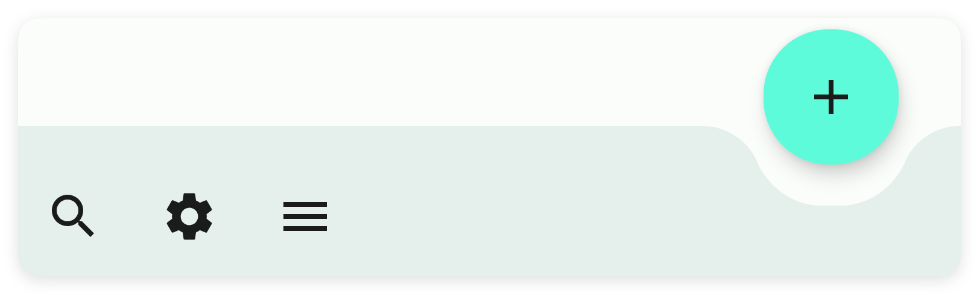
#设置按钮弧度
<ui>
    <statusbar />
    <coord h="max" w="max">
        <appbar-layout w="max">
            <appbar back="true" id="mAppbar" scrollFlags="scroll|enterAlways" subTitle="工具条"
                title="Toolbar" w="max" />
        </appbar-layout>
        <nested anchor="nested" behavior="appbar" bg="bg" h="max" w="max">
            <linear dir="v" gravity="center" marginBottom="75" w="max">
                <text h="210" text="文本1" />
                <text h="210" text="文本2" />
                <text h="210" text="文本3" />
                <text h="210" text="文本4" />
                <text h="210" text="文本5" />
            </linear>
        </nested>
        <!--
        设置按钮弧度:fabRadius="25"
        -->
        <toolbar anchor="toolbar" anchorGravity="center|bottom" anchorLayout="nested"
            fabAnim="slide" fabGravity="center" fabMode="out" fabRadius="25" h="75"
            layout_gravity="bottom" w="max">
            <menu icon="ic_search_fill" text="搜搜" />
            <menu icon="ic_settings_fill" text="设置" />
            <menu icon="ic_menu_fill" text="菜单" />
        </toolbar>
        <fab anchorLayout="toolbar" icon="ic_add_outline" iconTint="txt" radius="27" />
    </coord>
</ui>#按钮弧度:10
<toolbar fabRadius="10" w="max" />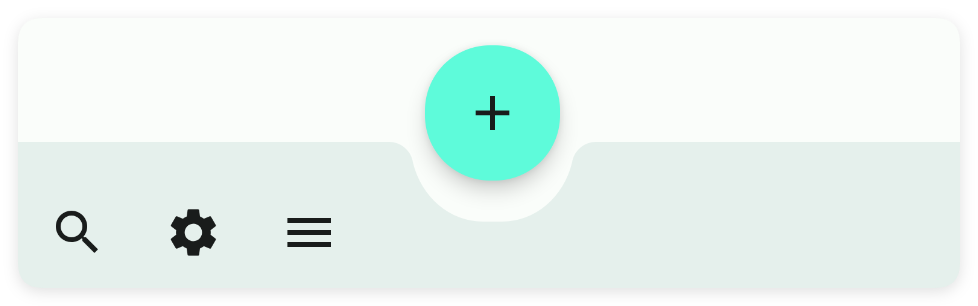
#按钮弧度:30
<toolbar fabRadius="30" w="max" />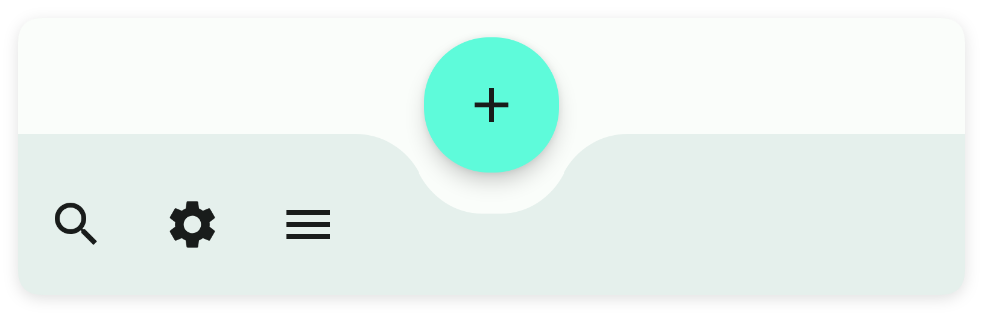
#三、常用函数
#menu(callback)
监听菜单事件
- 参数 : callback {(title)=>{}} 菜单点击事件
//监听菜单事件
toolbar.menu((title)=>{
    console.log(title);
});