
#案例-标签联动
- 更新时间:2026-06-15 07:53:04
此案例演示如何使用多页布局和标签布局进行联动
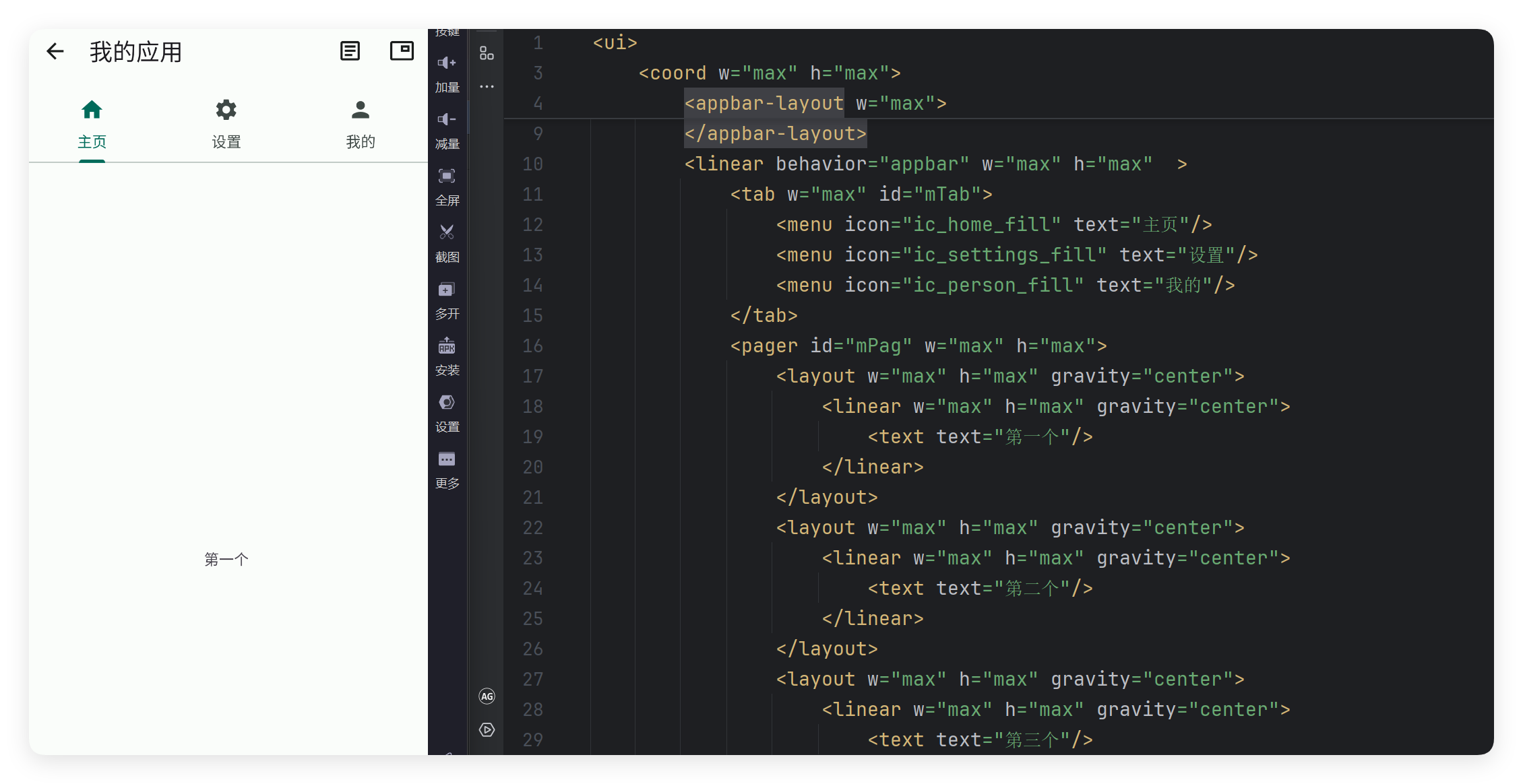
#Xml代码
<ui>
    <statusbar/>
    <coord w="max" h="max">
        <appbar-layout w="max">
            <appbar w="max" id="mAppbar" back="true" title="我的应用">
                <item icon="ic_article_outline" text="日志"/>
                <item icon="ic_picture_in_picture_outline" text="日志悬浮窗"/>
            </appbar>
        </appbar-layout>
        <linear behavior="appbar" w="max" h="max"  >
            <tab w="max" id="mTab">
                <menu icon="ic_home_fill" text="主页"/>
                <menu icon="ic_settings_fill" text="设置"/>
                <menu icon="ic_person_fill" text="我的"/>
            </tab>
            <pager id="mPag" w="max" h="max">
                <layout w="max" h="max" gravity="center">
                    <linear w="max" h="max" gravity="center">
                        <text text="第一个"/>
                    </linear>
                </layout>
                <layout w="max" h="max" gravity="center">
                    <linear w="max" h="max" gravity="center">
                        <text text="第二个"/>
                    </linear>
                </layout>
                <layout w="max" h="max" gravity="center">
                    <linear w="max" h="max" gravity="center">
                        <text text="第三个"/>
                    </linear>
                </layout>
            </pager>
        </linear>
    </coord>
</ui>#Js代码
let ui = $ui.layout("main.xml");
let mAppbar = ui.id("mAppbar");
mAppbar.back(() => {
    ui.finish();
});
//将多页布局和标签布局绑定联动
let mPag = ui.id("mPag");
let mTab = ui.id("mTab");
mPag.bind(mTab);
//显示界面
ui.show();